
3.5. Templates
A template defines the set of tests against which media files will be validated. The page displays the list of templates that are part of the project. You can create a new template or edit an existing one.
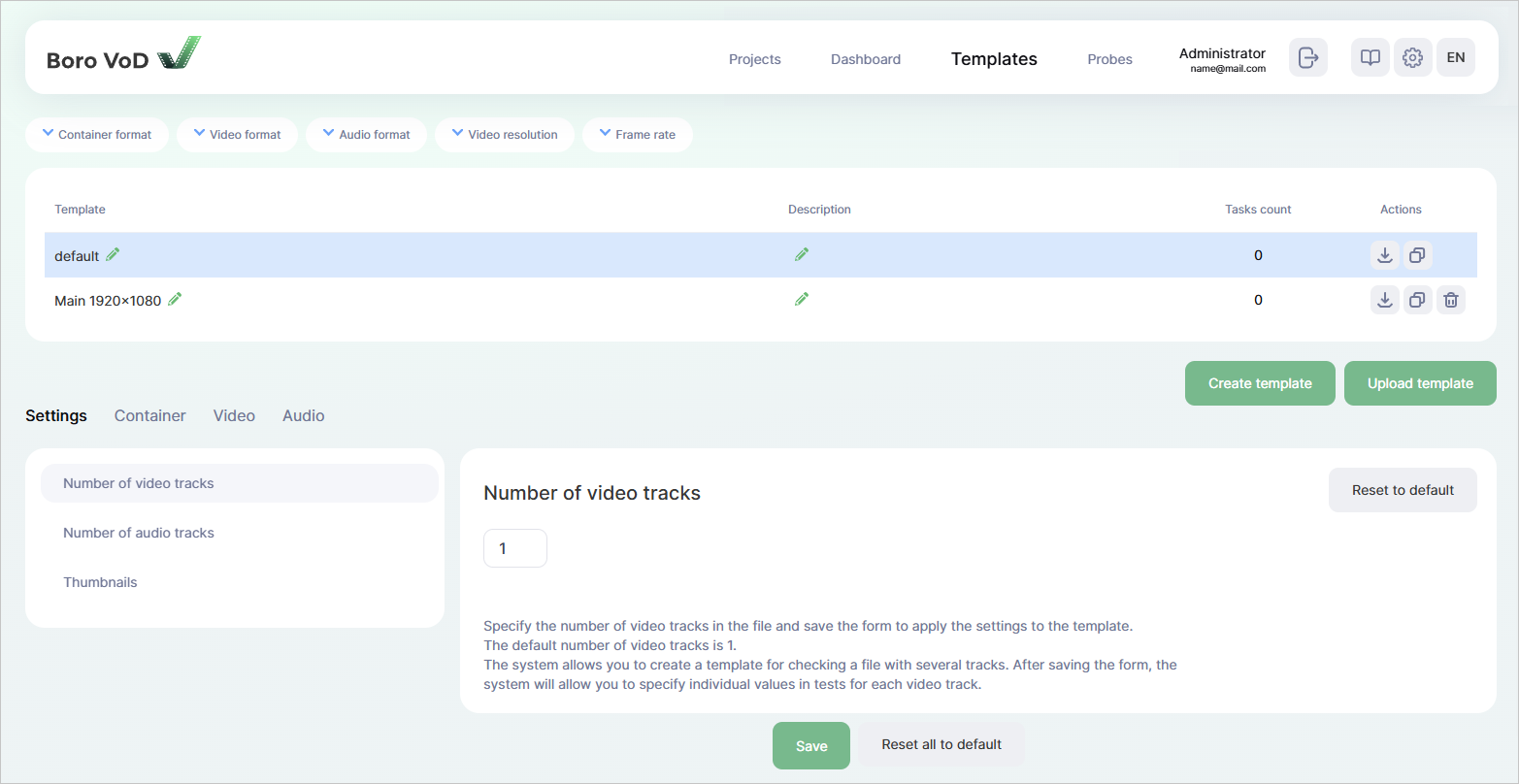
3.5.1. List of Templates
Name — to rename the template, click on
 ;
;Description — template description. To add or change the description, click on
;Task Count — the number of currently running tasks that use this template. Clicking will open a window with a list of running tasks using this template;
Actions — contains the following buttons:
 — clicking will start downloading a ZIP archive with the template in JSON format to your computer,
 — clicking will create a copy of the selected template at the end of the list. The copied template will have
 _copyadded at the end of its name, — clicking will open a window to confirm template deletion.
Note
The system template (the first one in the list) cannot be deleted; it is provided with the solution by default.The system will not allow deleting a template that is currently being used for media file validation. Wait for the task(s) to complete or go to the Dashboard page and stop the task(s).
To create a new template, click  — it is located below the table of existing templates and to the left.
After creation, the table will position itself on the new template, ready for configuring.
— it is located below the table of existing templates and to the left.
After creation, the table will position itself on the new template, ready for configuring.
The system lets you import a template from your computer using the  button.
When clicked, a file selection window will open—select a ready-made template in JSON format and confirm.
A template added in this way will appear at the end of the table.
button.
When clicked, a file selection window will open—select a ready-made template in JSON format and confirm.
A template added in this way will appear at the end of the table.
Attention
JSON file has to be validated before uploading. If there are no errors, the system will save the template. Otherwise, a log with error descriptions will pop up in the top left corner of the screen. Validation includes:
checking the syntax and formatting of the JSON file;
checking for threshold values for all enabled tests. An enabled test without a threshold value is considered invalid;
cross-checking between the number of video and audio tracks as well as threshold values for test groups for video (General video settings, Specific settings for AVC/H.264, HEVC/H.265) and audio (General audio settings);
checking the span of the entered threshold values against the requirements of each test, since different tests can use different units. When manually editing values, refer to the description of specific tests in the Test List section.
3.5.2. Template configuration
To configure a template, go through these steps one by one:
While in the template list, click on the the template you want to configure. The selected template will be highlighted.
Go to the Settings tab below and specify:
Number of video tracks (
1by default);Number of audio tracks (
1by default);Thumbnails (how frequently thumbnails will be captured). Probe can automatically capture video stream’s thumbnails and forward them to server. To configure this setting, use the following parameters:
Interval — integer value, specifies the interval between thumbnail captures in seconds. Setting the value to
0disables thumbnail capturing. The default value is10seconds;Freeze interval — integer value, specifies the interval between thumbnail captures in seconds during a video freeze. Setting the value to
0disables thumbnail capturing. The default value is10seconds.Thumbnail quality — integer value, specifies thumbnail compression quality within the interval from
30to100%. The default value is70.
Important
The number of tracks determines how many validation condition groups will be available on the Container, Video, and Audio tabs.
A separate set of conditions is created for each track, where you can enter values that the media file must comply with. For example, if you specify 1 video track, then in the video tests you can only set conditions for 1 track. If the file contains more tracks, they will not be validated. After changing the number of tracks, be sure to save the form. Only after saving will the settings be applied, and the following tabs (Video, Audio) will display fields for entering compliance conditions for each specified track.
Save the settings before proceeding to configuring tests on the Container, Video, and Audio tabs.
A test template includes a list of tests. A test is a rule which the probe validates a media file in reliance to. Each test is responsible for analyzing a specific parameter or error. For convenience, tests are grouped into 3 tabs: Container, Video, and Audio. Additionally, on each tab, tests are further divided into several subgroups:
Container:
General (file description) — validation of general media file parameters: size, format, duration, etc.;
Container validation — validation of the integrity of a specific media container.
Video:
General video settings — validation of basic metadata compliance: resolution, chroma subsampling, scan type, frame rate, etc.;
Specific settings for AVC/H.264, HEVC/H.265 — validation of metadata specific to these formats;
Video quality — validation of visual inconsistencies and artifacts.
Audio:
General audio settings — validation of basic metadata compliance: number of channels, sample rate, etc.;
Audio quality — validation of loudness levels, silence, distortion.
Note
Video quality and Audio quality tests are marked with a special
 icon, indicating increased hardware performance requirements.
Enabling tests from this group will increase the duration of media file analysis.
icon, indicating increased hardware performance requirements.
Enabling tests from this group will increase the duration of media file analysis.Go through the list of tests and enable the necessary ones. To enable one, tick the checkbox next to its name. Without a ticked checkbox, the test is considered disabled and will not be performed during media file validation.
For enabled tests, set the severity level:
Warning,Error, orFatal. For each test, default severity levels are defined. If needed, you can change the severity level for any test. If errors occur in a specific test, the result of the media file validation task (WarningorFailed) depends on the test’s severity level.Warning— error is not critical but requires attention;Error— error may lead to incorrect service operation or problems during media file playback;Fatal— error is highly likely to lead to incorrect service operation or inability to play the media file.
Example
During media file validation, a single error was detected in the File Extension test. Since the test’s severity level was
Warning, the validation result wasWarning. But if the test’s severity level had beenErrororFatal, the validation result would have beenFailed.Specify threshold values or compliance values.
Each test has a
 button located in the top right corner. Clicking it will reset the severity level and values to their defaults for the current test;
To reset all settings to their defaults for the entire template, use the
 button located at the bottom of the page.
Clicking it will open a window to confirm the reset of all settings.
After applying, the template will go back to the default tests with default severity levels and thresholds;
Before configuring the template any further, use the Save button;
button located at the bottom of the page.
Clicking it will open a window to confirm the reset of all settings.
After applying, the template will go back to the default tests with default severity levels and thresholds;
Before configuring the template any further, use the Save button;In the Container Format, Video Format, and Audio Format test settings, you will find a special
 toggle switch (disabled by default).
Toggling it will stop media file validation if the file does not meet the requirements specified in the tests.
This option saves resources by aborting validation of media files that do not meet basic format requirements.
toggle switch (disabled by default).
Toggling it will stop media file validation if the file does not meet the requirements specified in the tests.
This option saves resources by aborting validation of media files that do not meet basic format requirements.
Configure the remaining tests in a similar manner, then use the Save button. Once clicked, the template settings will be saved.
3.5.3. List of Tests
Container
1. File size
Checks that the file size matches the specified threshold values:
If only the minimum value is set, then this test ensures that the file size is not below the specified value;
If only the maximum value is set, then this test ensures that the file size doesn’t exceed the specified value;
When both values are provided, this test ensures that the file size is within the range between the minimum and maximum values inclusively.
Settings
Severity level by default:
WarningMinimum
Maximum
You can use bytes, kilobytes, megabytes, and gigabytes as units of measurement.
2. Container format
Checks that the container format matches formats indicated in the template.
Settings
Severity level by default:
FatalAllowed values include:
MP4Default value: also
MP4- is disabled by default
General info
3. File extension
Checks that the file extension matches the values in the template.
Settings
Severity level by default:
WarningValues should be comma-separated
The default values are
mp4,mov
General info
4. Video format
Checks that the video format matches the values in the template.
Settings
Severity level by default:
FatalAllowed values include:
MPEG-1,MPEG-2,AVC/H.264,HEVC/H.265Default value:
AVC/H.264- is disabled by default
General info
Boro VoD Probe can identify the following video formats within MP4 and MOV media containers without performing full QC validation: VVC/H.266, AV1, Google VP9, Google VP8, JPEG, Motion JPEG, MPEG-4 Visual, Apple ProRes
5. Audio format
Checks that the audio format matches the values in the template.
Settings
Severity level by default:
FatalAllowed values include:
MPEG Audio,AACDefault value:
AAC- is disabled by default
General info
Boro VoD Probe can identify the following audio formats within MP4 and MOV media containers without performing full QC validation: PCM, AC-3, E-AC3
6. Number of audio and video tracks
Checks that the number of audio and video tracks in the container matches the values in the settings of the template.
Settings
Severity level by default:
ErrorNumber of video and audio tracks can be set in the Settings tab
7. Audio and video start timestamp
Checks that the start timestamp of audio and video tracks matches the threshold value indicated as hh:mm:ss.ms in the template.
Settings
Severity level by default:
WarningStart timestamp specified in the
hh:mm:ss.msformatDefault value:
00:00:00.000
General info
A start timestamp is usually equal to 0.
A wrong start timestamp value will lead to a time shift in the file and will possibly lead to difficulties with positioning this file in the player during playback.
The Audio and video start timestamp and Audio and video end timestamp tests are used to identify the duration of audio and video tracks in the file via timestamps.
Identified in this manner, the duration is also used for cross-testing in the Audio and video duration mismatch test.
8. Audio and video end timestamp
Checks that the end timestamp of audio and video tracks matches the threshold value indicated as hh:mm:ss.ms in the template.
Settings
Severity level by default:
ErrorEnd timestamp specified in the
hh:mm:ss.msformat
General info
The Audio and video start timestamp and Audio and video end timestamp tests are used to identify the duration of audio and video tracks in the file via timestamps. Identified in this manner, the duration is also used for cross-testing in the Audio and video duration mismatch test.
9. Audio duration
Checks that the audio duration matches the specified threshold values indicated as hh:mm:ss.ms in the template.
If only the minimum value is set, then this test ensures that the audio duration is not below the specified value;
If only the maximum value is set, then this test ensures that the audio duration doesn’t exceed the specified value;
When both values are provided, this test ensures that the audio duration is within the range between the minimum and maximum values inclusively.
Settings
Severity level by default:
ErrorMinimum
Maximum
10. Video duration
Checks that the video duration matches the specified threshold values indicated as hh:mm:ss.ms in the template.
If only the minimum value is set, then this test ensures that the video duration is not below the specified value;
If only the maximum value is set, then this test ensures that the video duration doesn’t exceed the specified value;
When both values are provided, this test ensures that the video duration is within the range between the minimum and maximum values inclusively.
Settings
Severity level by default:
ErrorMinimum
Maximum
11. Audio and video duration mismatch
Compares the duration of all audio and video tracks in the container.
Settings
Severity level by default:
ErrorAllowed mismatch threshold in milliseconds
Default value:
300
12. Absence of mandatory MP4 boxes
ftyp, mdat, moov, mvhd.Settings
Severity level by default:
Fatal
13. Duration of MP4 container
Checks that the value of the duration parameter from the Media Header Box (mdhd) in an MP4 container matches the actual duration of audio and video tracks calculated via timestamps.
Settings
Severity level by default:
ErrorAllowed mismatch threshold in milliseconds
Default value:
300
General info
Specified duration of an MP4 file may not match the actual one. It is assumed that the actual duration is the one calculated via timestamps.
14. Timescale in mvhd box
timescale value in the Movie Header Box (mvhd) of an MP4 container.0.timescale value is used to calculate the duration of video frames and audio samples in an MP4 container.Settings
Severity level by default:
Error
15. Video timestamp discontinuity
Checks the continuity of timestamps in video tracks of an MP4 container. It analyzes the absolute difference between video timestamp values and outputs an error if the threshold value is exceeded.
Settings
Severity level by default:
ErrorThreshold value in milliseconds
Default value:
100
16. Audio timestamp discontinuity
Checks the continuity of timestamps in audio tracks of an MP4 container. It analyzes the absolute difference between audio timestamp values and outputs an error if the threshold value is exceeded.
Settings
Severity level by default:
ErrorThreshold value in milliseconds
Default value:
100
17. Container and elementary metadata mismatch
Compares the key headers in the configuration of audio and video tracks at container and elementary stream level. The following headers are checked:
For audio tracks: format, sampling rate, profile, number of channels;
For video tracks: format, profile, level, resolution, chroma subsampling, bit depth, maximum number of reference frames, scanning type. If present, the aspect ratio, the frame rate, the colorimetric parameters are also checked.
Settings
Severity level by default:
Error
General info
This metadata is required for the decoder to initialize correctly. Usually, the elementary level data is used, but it all depends on the actual player implementation. That is why it is important to keep metadata identical.
Video
18. Video resolution
Checks that the video resolution indicated in the header of elementary video tracks matches the values in the template.
Settings
Severity level by default:
ErrorValues:
7680 × 4320 (8K),3840 × 2160 (4K),2560 × 1440 (2K),1920 × 1080 (Full HD),1280 × 720 (HD),960 × 540 (SD),854 × 480 (SD),720 × 576 (SD),640 × 360 (SD),426 × 240 (SD), custom resolution in theN×MformatDefault value:
1920×1080 (Full HD)
General info
MPEG-1 and MPEG-2 video formats: the
horizontal_size_valueandvertical_size_valuein theSequence Header;MPEG-4 part 10 AVC/H.264 video format: the
pic_width_in_mbs_minus1andpic_height_in_map_units_minus1values in theSequence Parameter Setheader;MPEG-H part 2 HEVC/H.265 video format: the
pic_width_in_luma_samplesandpic_height_in_luma_samplesvalues in theSequence Parameter Setheader.
19. Video resolution changed
Settings
Severity level by default:
Error
20. Video profile and level
Checks that the Profile and Level values in the headers of video tracks match the values in the template.
Settings
Severity level by default:
ErrorA pair of
ProfileandLevelvalues per video formatDefault values:
For MPEG–2 —
Main,Main;For AVC/H.264 —
High (100),4;For HEVC/H.265 —
Main (1),4.1.
General info
Baseline Profile in the AVC/H.264 video format doesn’t let you use CABAC entropy encoding or encode B-frames and video with bit depth equal to 10 bits.Level value is set depending on the video resolution.
The lower the value, the more limitations are applied.Checked values
For the MPEG-2 video format, the
profile_and_level_indicationvalue (Table 8-2, Table 8-3) in theSequence Extensionheader is checked.- For the AVC/H.264 video format, the
profile_idcandlevel_idcvalues in theSequence Parameter Setheader are checked.To identify the profile accurately, theconstraint_set[N]_flagvalue is also used.Common level values for AVC/H.264:1–2 are applicable to resolutions reaching as far as 352×288 pixels,
2–3 are applicable to resolutions reaching as far as 720×576 pixels,
3–4 are applicable to resolutions reaching as far as 2048×1024 pixels,
4–5 are applicable to resolutions reaching as far as 3680×1536 pixels,
5–5.2 are applicable to resolutions reaching as far as 8192×4320 pixels.
For the HEVC/H.265 video format,
general_profile_idcandgeneral_level_idcvalues inSequence Parameter Setheader are checked.
21. Video profile and level changed
Profile and Level values in the headers of elementary video tracks.Profile and Level values result in changes of video syntax and can lead to the player decoder or transcoder crashing or reinitializing, causing service interruption.Settings
Severity level by default:
Error
22. Chroma subsampling
Checks that the chroma subsampling value in the headers of video tracks matches the value in the template.
Settings
Severity level by default:
ErrorValues:
4:4:4,4:2:2,4:2:0, custom value in thex:y:zformatDefault value:
4:2:0
General info
Digital images are made of pixels. In digital television, the color of each pixel is formed according to the YUV model, where Y is a luminance component, and Cr and Cb are two chrominance components. The chroma subsampling technology is additionally used, implying that the Y component data is saved for each pixel, while Cr and Cb color data is saved for groups of pixels. This means that Cr and Сb components are transmitted with reduced resolution. This has to do with the human eye being less perceptive to changes in color than luminance. Listed below are the existing subsampling formats:
4:4:4 — Cb and Cr components are transmitted with full resolution;
4:2:2 — Cb and Cr components have the same resolution with Y luminance component vertically and only half of the Y resolution horizontally; This format is often used in studios for video editing or can be found in master files. It’s pretty much never used in content delivery to end users;
4:2:0 — Cb and Cr components have half of Y resolution both vertically and horizontally. This is the most common format in digital television. End users receive content in this exact format.
Checked values
MPEG-2 video format:
chroma_formatvalue inSequence Extensionheader;AVC/H.264 and HEVC/H.265 video formats:
chroma_format_idcvalue inSequence Parameter Setheader.
23. Chroma subsampling changed
Settings
Severity level by default:
Error
24. Scan type
Checks that the scan type in the headers of video tracks matches the template value.
Settings
Severity level by default:
ErrorValues:
Interlaced,ProgressiveDefault value:
Progressive
General info
Two scan types are used in television:
Interlaced scan is a technology developed for analog television: Each frame is split into two fields made of lines. The first field comprises odd-numbered lines, the second one—even-numbered lines. The industry is gradually moving from the interlaced to progressive video;
Progressive scan is a technology that displays all lines sequentially.
Checked values
MPEG-2 video format:
progressive_sequencevalue inSequence Extensionheader,progressive_framevalue inPicture Coding Extensionheader.
AVC/H.264 video format:
frame_mbs_only_flagandpic_struct_present_flagvalues inSequence Parameter Setheader,field_pic_flagvalue inSlice Headerheader,pic_structvalue inSEI pic.timingheader.
HEVC/H.265 video format:
general_progressive_source_flag,general_interlaced_source_flag, andfield_seq_flagvalues inSequence Parameter Setheader,pic_structandsource_scan_typevalues inSEI pic.timingheader.
25. Scan type changed
Settings
Severity level by default:
Error
26. Scan order
Checks that the order of fields in the headers of video tracks with the interlaced scan type matches the template value.
Settings
Severity level by default:
ErrorValues:
Top field first (TFF),Bottom field first (BFF)Default value:
Top field first (TFF)
General info
Two scan types are used in television:
Interlaced scan is a technology developed for analog television: Each frame is split into two fields made of lines. The first field comprises odd-numbered lines, the second one—even-numbered lines. The industry is gradually moving from the interlaced to progressive video;
Progressive scan is a technology that displays all lines sequentially.
TFF (Top field first) means the upper field is the first; contains a sequence of odd-numbered lines;
BFF (Bottom field first) means the lower field is the first; contains a sequence of even-numbered lines.
Checked values
MPEG-2 video format:
progressive_sequencevalue inSequence Extensionheader,progressive_framevalue inPicture Coding Extensionheader.
AVC/H.264 video format:
frame_mbs_only_flagandpic_struct_present_flagvalues inSequence Parameter Setheader,field_pic_flagvalue inSlice Headerheader,pic_structvalue inSEI pic.timingheader.
HEVC/H.265 video format:
general_progressive_source_flag,general_interlaced_source_flag, andfield_seq_flagvalues inSequence Parameter Setheader,pic_structandsource_scan_typevalues inSEI pic.timingheader.
27. Scan order changed
Settings
Severity level by default:
Error
28. Colorimetric parameters
Checks that colorimetric parameters in the headers of video tracks match the template values.
Settings
Severity level by default:
ErrorValues:
Colour primaries,Transfer characteristics,Matrix coeffsDefault value sets:
Unspecified: 2, 2, 2;SDR (Standard Dynamic Range), recommended by ITU-R BT.709-6: 1, 1, 1;HDR (High Dynamic Range), recommended by ITU-R BT.2020-2 and Rec. ITU-R BT.2100-2: 9, 16, 9 (for HDR10, HDR10 plus, Dolby Vision), 9, 18, 9 (for HLG, Dolby Vision).
General info
Checked values
In the MPEG-2 video format,
colour_primaries,transfer_characteristics, andmatrix_coefficientsvalues in theSequence display extensionheader are checked;In the AVC/H.264 and HEVC/H.265 video formats,
colour_primaries,transfer_characteristics, andmatrix_coeffsvalues in theSequence Parameter Setheader are checked. The parameters are used by displays for correct color rendition.
29. Colorimetric parameters changed
Settings
Severity level by default:
Error.
30. Display aspect ratio
Checks that the value of display aspect ratio (DAR) in the headers of video tracks matches the values in the template.
Settings
Severity level by default:
ErrorValues:
16:9,5:4,4:3, custom comma-separated value in thex:yorx.z:1formatDefault value:
16:9
General info
DAR (display aspect ratio) is the ratio of frame sides, which determines the way the player outputs the frame on the screen;
PAR (picture aspect ratio) is the video resolution in pixels such as 1920×1080, 1280×720, etc.;
SAR (sample aspect ratio) is the pixel aspect ratio, such as 1×1 (square).
Checked values
MPEG-1 and MPEG-2 video formats:
aspect_ratio_information(Table 6-3, ITU-T Rec. H.262 (2000 E)) value in theSequence headerheader. Ifaspect_ratio_idcis missing, it is assumed that the entire frame will be checked against the entire active display area;AVC/H.264 and HEVC/H.265 video formats:
aspect_ratio_idc,sar_width, andsar_height(Table E.1, Rec. ITU-T H.265 v8 (08/2021) и Rec. ITU-T H.264 (08/2021)) values in theSequence Parameter Setheader. Ifaspect_ratio_idcis missing, its value will be considered to be0(unspecified).
31. Display aspect ratio changed
Settings
Severity level by default:
Error
32. Sample aspect ratio
Checks that the value of sample aspect ratio (SAR) in the headers of video tracks matches the template values.
Settings
Severity level by default:
ErrorValues:
1:1, custom comma-separated value in thex:yorx.z:1formatDefault value:
1:1
General info
DAR (display aspect ratio) is the ratio of frame sides, which determines the way the player outputs the frame on the screen;
PAR (picture aspect ratio) is the video resolution in pixels such as 1920×1080, 1280×720, etc.;
SAR (sample aspect ratio) is the pixel aspect ratio, such as 1×1 (square).
Checked values
MPEG-1 and MPEG-2 video formats:
aspect_ratio_information(Table 6-3, ITU-T Rec. H.262 (2000 E)) value in theSequence headerheader. Ifaspect_ratio_idcis missing, it is assumed that the entire frame will be checked against the entire active display area;AVC/H.264 and HEVC/H.265 video formats:
aspect_ratio_idc,sar_width, andsar_height(Table E.1, Rec. ITU-T H.265 v8 (08/2021) и Rec. ITU-T H.264 (08/2021)) values in theSequence Parameter Setheader. Ifaspect_ratio_idcis missing, its value will be considered to be0(unspecified).
33. Sample aspect ratio changed
Settings
Severity level by default:
Error
34. AFD codes
Checks that the value of AFD codes in the headers of video tracks matches the template value.
Settings
Severity level by default:
ErrorValues:
0,2,3,4,8,9,10,11,13,14,15
General info
0: ETSI: reserved; ATSC: undefined;
1 — reserved;
2 — ETSI: 16:9 active picture (top aligned); ATSC: “not recommended”;
3 — ETSI: 14:9 active picture (top aligned); ATSC: “not recommended”;
4 — ETSI: box > 16:9 (center): wider than 16:9 active picture. The aspect ratio of the source area is not given, and the size of the top/bottom bars is not indicated. ATSC: bar data (indicating the extent of top, bottom, left, and right bars) should be transmitted when using this code;
5–7 — reserved;
8 — Full Frame image, same as the frame (4:3 or 16:9);
9 — 4:3 Image: Full Frame in 4:3 frame, Pillarbox in 16:9 frame;
10 — 16:9 Image: Letterbox in 4:3 frame, Full Frame in 16:9 frame;
11 — 14:9 Pillarbox/Letterbox image;
12 — unused;
13 — 4:3 with shoot and protect 14:9 center;
14 — 16:9 with shoot and protect 14:9 center;
15 — 16:9 with shoot and protect 4:3 center.
Checked values:
MPEG-2 video format:
afd_datavalue in theuser_dataheader;AVC/H.264 and HEVC/H.265 video formats:
active_format_flagvalue in theSEI user data registered itu t t35header.
35. AFD codes changed
Settings
Severity level by default:
Error
36. Frame rate
Checks that the frame rate value in the headers of video tracks matches the template value.
Settings
Severity level by default:
ErrorValues:
23.976,24,25,29.97,30,48,50,59.94,60, custom valuesDefault value:
25
General info
Frame rate reflects the number of frames shown per unit of time:
24 frames per second is the worldwide movie industry standard;
23.976 and 59.94 are used in the American NTSC standard;
25 and 50 are used in the European PAL standard.
Checked values
MPEG-1 and MPEG-2 video formats:
frame_rate_code(Table 6-4, ITU-T Rec. H.262 (2000 E)) value in theSequence headerheader;AVC/H.264 video format:
time_scaleandnum_units_in_tickvalues in theSequence Parameter Setheader;HEVC/H.265 video format:
vui_num_units_in_tickandvui_time_scalevalues in theSequence Parameter Setheader,vps_num_units_in_tickandvps_time_scalevalues in theVideo Parameter Setheader.
37. Frame rate changed
Settings
Severity level by default:
Error
38. Active frame rate
Determines the active frame rate using timestamps and compares it with the frame rate value from the headers of elementary video tracks. User can set the mismatch threshold in frames.
Settings
Severity level by default:
ErrorAllowed mismatch threshold
General info
Mismatch between the active frame rate and the one declared in headers can happen in the following cases:
Variable frame rate is indicated in headers for AVC/H.264 and HEVC/H.265;
Precise positioning of timestamps depends on the multiplexer and the encapsulated elementary video track.
Mismatch in frame rate values leads to differences in duration and bitrate. The precise frame rate used in a player or transcoder is case-specific.
39. Average bitrate
Determines the average bitrate of an elementary video track and checks that it matches the scenario in the template:
If only the minimum value is set, then this test ensures that bitrate is not below the specified value;
If only the maximum value is set, then this test ensures that bitrate doesn’t exceed the specified value;
When both values are provided, this test ensures that bitrate is within the range between the minimum and maximum values inclusively—otherwise the test will be failed.
Settings
Severity level by default:
ErrorMinimum value
Maximum value
40. CBR/VBR bitrate
Determines the bitrate type used for video tracks and checks that it matches the template value.
Settings
Severity level by default:
ErrorValues:
CBR,VBRDefault value:
VBR
General info
There are two types of bitrate depending on the video encoding method:
CBR (Constant bitrate) — bitrate stays the same throughout the entire file;
VBR (Variable bitrate) — bitrate values can change throughout the entire file depending on scene complexity.
CBR is used in IPTV and DVB/ATSC streams. VoD media files usually rely on VBR since it lets you achieve better quality due to more optimal use of bitrate by the encoder.
Checked values
In the
AVC/H.264andHEVC/H.265video formats, the declared CBR/VBR method can be determined by checking thecbr_flagvalue in theSequence Parameter Setheader;The actual method can be identified by checking the size of all frames in a one-second range.
41. GOP length
Determines the GOP length value in elementary video tracks and checks that it matches the template value:
If only the minimum value is set, then this test ensures that GOP length is not below the specified value;
If only the maximum value is set, then this test ensures that GOP length doesn’t exceed the specified value;
When both values are provided, this test ensures that GOP length is within the range between the minimum and maximum values inclusively.
Settings
Severity level by default:
ErrorMinimum value
Maximum value
General info
42. GOP structure
Determines the GOP structure in video tracks and checks that it matches the template value.
Settings
Severity level by default:
ErrorMis the distance between two P-frames;Nis the distance between two I-frames.
General info
M and N values.IPBBBPBBBPBBBPBBBPBBBPBBBI.43. Closed GOP
Checks that the GOP structure in video tracks matches the template value.
Settings
Severity level by default:
ErrorValues:
closed GOP,open GOP
General info
GOP structures can be closed or open:
In a closed GOP, all P- and B-frames reference the frames of the same GOP;
An open GOP may contain P- and B-frames that reference the frames of another GOP.
Checked values
MPEG-1 and MPEG-2 video formats:
closed_gopvalue in theGroup of Picture Headerheader;AVC/H.264 video format:
slice_typeandnal_unit_typevalues in theSlice Headerheader as well as syntax of reference frames for P- and B-frames. The probe explicitly pinpoints a closed GOP by checking if theIDRflag is present in an I-frame;HEVC/H.265 video format:
nal_unit_typevalue in theSlice Headerheader as well as syntax of reference frames for P- and B-frames.
44. Video bit depth
Checks that the bit depth value in the headers of video tracks matches the template value.
Settings
Severity level by default:
ErrorValues:
8 bits,10 bits,12 bits,16 bitsCustom luminance value
Custom chrominance value
Default value:
8 bits
General info
8 bits— the most common digital broadcasting format supported by the MPEG-1 and MPEG-2 video formats;10 bits— usually used in the combination of HEVC/H.265 video format, 4K resolution and HDR;Chroma and luma values may differ, but this happens rarely and generally the difference is not applied to broadcasting.
Allowed values include:
8 bits— supported by the MPEG-1 and MPEG-2 video formats, meaning that putting them through this test isn’t necessary;8–12 bits— supported by the AVC/H.264 video format depending on theProfilevalue;8–16 bits— supported by the HEVC/H.265 video format depending on theProfilevalue.
bit_depth_luma_minus8 and bit_depth_chroma_minus8 values in the Sequence Parameter Set header are checked.0 — 8 bits;2 — 10 bits;4 — 12 bits;6 — 16 bits.
45. Video bit depth changed
Settings
Severity level by default:
Error
46. Type of entropy coding
Checks that the type of entropy coding in the headers of AVC/H.264 video tracks matches the template value.
Settings
Severity level by default:
ErrorValues:
CAVLC,CABACDefault value:
CABAC
General info
This test targets AVC/H.264 video tracks only:
MPEG-1 and MPEG-2 video formats use VLC (Variable-Length Coding), making this test irrelevant for them;
HEVC/H.265 video format uses CABAC, making this test irrelevant for it as well;
AVC/H.264 relies on 2 coding algorithms:
CAVLC — context-adaptive variable-length coding,
CABAC — context-adaptive binary arithmetic coding. Available for several
Profilevalues such asMainandHigh. It achieves a 10–15% bitrate reduction compared to CAVLC at the same quality, but increases computational complexity.
Checked values
For the AVC/H.264 video format, the entropy_coding_mode_flag value in the Picture Parameter Set header is checked.
47. Type of entropy coding changed
Picture Parameter Set header for AVC/H.264 video tracks.Settings
Severity level by default:
Error
48. Reference frame number
Checks that the maximum number of reference frames in the headers of video tracks matches the template value. This test targets AVC/H.264 and HEVC/H.265 video formats.
Settings
Severity level by default:
ErrorNumber of reference frames
Default value:
3
General info
MPEG-1 and MPEG-2 have one reference frame for P-frames and two reference frames for B-frames (MPEG-2), i.e. one preceding and one following frame, making this test irrelevant;
AVC/H.264 and HEVC/H.265 can have up to 16 reference frames.
The optimal option is 3 to 6 frames. A larger number of frames usually takes up buffer space and is not actually used.
Checked values
AVC/H.264 video format:
max_num_ref_framesvalue in theSequence Parameter Setheader;HEVC/H.265 video format:
sps_max_dec_pic_buffering_minus1value in theSequence Parameter Setheader.
49. Reference frame number changed
Settings
Severity level by default:
Error
50. HDR format
Settings
Severity level by default:
ErrorValues:
HDR10,HLG,HDR10 +,Dolby Vision
General info
HDR content usually uses the HEVC/H.265 video format with the bit depth value equal to 10 bits and 4K video resolution. AVC/H.264 can be used, but this is rare in practice. Bit depth that equals 8 bits is almost not used for HDR content.
There are 4 key HDR standards:
HDR10 is a widely used open standard with a set of static metadata;
HLG is a widely used open standard without metadata;
HDR10 plus is a proprietary standard made by Samsung that includes a set of dynamic metadata and has backward compatibility with HDR10;
Dolby Vision is a proprietary standard made by Dolby Laboratories that includes a set of dynamic metadata. Some Dolby Vision profiles have backward compatibility with HDR10 and HLG.
For AVC/H.264 and HEVC/H.265 video formats, the following values are checked: Sequence Parameter Set, значения colour_primaries, transfer_characteristics и matrix_coeffs, SEI: Mastering display colour volume, Content light level information, Alternative transfer characteristics, user_data_registered_itu_t_t35.
51. HDR10 metadata
Checks that HDR10 metadata in the headers of elementary video tracks matches the template values.
Settings
Severity level by default:
ErrorDisplay primaries [0]
Display primaries [1]
Display primaries [3]
White Point
Max display mastering luminance
Min display mastering luminance
Maximum Content Light Level (MaxCLL)
Maximum Frame-Average Light Level (MaxFALL)
Default values:
Display primaries [0] —
0.170;0.797;Display primaries [1] —
0.131;0.046;Display primaries [2] —
0.708;0.292;White Point —
0.3127;0.329;Max display mastering luminance —
1000;Min display mastering luminance —
0.005;Maximum Content Light Level (MaxCLL) —
1000;Maximum Frame-Average Light Level (MaxFALL) —
400.
General info
Display primaries — Х and Y coordinates of the three primary chrominance components;
White Point — X and Y coordinates of the white point;
Max display mastering luminance — the nominally maximum luminance of the mastering display in cd/m2. In accordance with SMPTE ST 2086:2018, this parameter can receive integer values in the 5–10000 cd/m2 range, where 1 cd/m2 equals 1 nit (nt);
Min display mastering luminance — the nominally minimum luminance of the mastering display in cd/m2. In accordance with SMPTE ST 2086:2018, this parameter can receive integer or fractional values in the 0.0001–5.0000 cd/m2 range, where 1 cd/m2 equals 1 nit (nt).
Maximum Content Light Level (MaxCLL) — the parameter that indicates the upper boundary of the maximum pixel luminance level in cd/m2. 1 cd/m2 equals 1 nit (nt);
Maximum Frame-Average Light Level (MaxFALL) — the parameter that indicates the upper boundary of the maximum average luminance level of the whole frame in cd/m2. 1 cd/m2 equals 1 nit (nt).
52. HDR10 metadata changed
Settings
Severity level by default:
Error
53. Video freeze
Settings
Severity level by default:
ErrorVideo freeze detecting interval. Default value:
1000millisecondsVideo freeze sensitivity (PSNR threshold). Default value:
42dBSpecial time slots:
Time from the start of the file. Default value:
0secondsTime from the end of the file. Default value:
0seconds
General info
The sensitivity of the freeze detector is set with the threshold value of the frame similarity degree based on the PSNR (peak signal-to-noise ratio) metric in decibels. The detector calculates the PSNR between two consecutive frames. If PSNR exceeds the threshold, the frames are considered identical. If all frames are identical during the interval when a freeze is detected, the state of error occurs. The higher the threshold, the stricter the condition for similarity of adjacent frames. FYI:
PSNR 20 — the frames are similar, but there is still some significant difference;
PSNR 35 — the frames are similar, but there are some visual differences;
PSNR 42 — the upper limit of error perception by the human eye;
PSNR 60—100 — the frames are almost identical.
54. Black Frames
Settings
Severity level by default:
ErrorBlack luminance level. Default value:
16Black pixel ratio in frame. Default value:
95%Black frames interval. Default value:
1000ms.Special time slots:
Time from the start of the file. Default value:
0secondsTime from the end of the file. Default value:
0seconds
General info
55. Constant-Color Frames
Settings
Severity level by default:
ErrorConstant-color pixel ratio in a frame. Default value:
90%.Constant-color frames interval. Default value:
1000ms.Special time slots:
Time from the start of the file. Default value:
0secondsTime from the end of the file. Default value:
0seconds
General info
56. Color bars test pattern
Settings
Severity level by default:
ErrorAbsolute color bar detection coefficient. Default value:
40%Relative color bar detection coefficient. Default value:
10%Сolor bar frames interval. Default value:
1000ms.Special time slots:
Time from the start of the file. Default value:
0secondsTime from the end of the file. Default value:
0seconds
General info
Сolor bar frames interval — the minimum duration in milliseconds during which frames contain color bars test pattern.
57. Video decodability error
Determines if the video track can be decoded. The system reports an error when the number of correctly decoded frames is below the given threshold in relation to the frame rate.
Settings
Severity level by default:
ErrorMetric mode. Default value:
FullCorrectly decoded frames threshold. Default value:
100
General info
Lite involves a semantic analysis of the elementary stream without further decoding; average precision and resource consumption. This level is enough to estimate the possibility of decoding the stream, but it doesn’t take the potential issues inside the frame into account;
Full involves full decoding; high precision and resource consumption. On this level, a frame is decoded only if it’s fully intact.
Audio
58. Audio sample rate
Checks that the value of audio sample rate in the headers of audio tracks matches the template value.
Settings
Severity level by default:
ErrorValues:
24000,44100,48000,96000, custom valueDefault value:
48000Гц
General info
59. Audio bit depth
Checks that the audio bit depth value in the headers of audio tracks matches the template value.
Settings
Severity level by default:
ErrorValues:
16,20,24,32, custom valueDefault value:
16
General info
The most wide-spread are:
16 bits— professional standard for TV, streaming services and music streaming platforms;24 bits— mainly used for in-studio records and Hi-Res, lossless audio.
60. Number of audio channels
Checks that the number of audio channels in the headers of audio tracks matches the template value.
Settings
Severity level by default:
ErrorValues:
1,2,4,6,8, custom valueDefault value:
2
General info
The following values are mainly applied:
1 — Mono — 0: М: mono;
2 — Stereo — 0: L: left, 1: R: right;
4 — Quadro — 0: L: left, 1: R: right, 3: SL: surround left, 4: SR: surround right;
6 — 5.1 — 0: L: left, 1: R: right, 2: C: central, 3: LFE: subwoofer, 4: SL: surround left, 5: SR: surround right;
8 — 7.1 — 0: L: left, 1: R: right, 2: C: central, 3: LFE: subwoofer, 4: SL: surround left, 5: SR: surround right, 6: BL: back left, 7: BR: back right.
61. AAC audio profile
Settings
Severity level by default:
ErrorValues:
Main,LC,SSR,LTP,HE-AAC,HE-AAC v2Default value:
LC
62. Audio language tag
Settings
Severity level by default:
ErrorLanguages listed in the alphabetic order
63. MPEG audio layer
Layer for MPEG audio match the template values.Settings
Severity level by default:
ErrorValues:
1,2,3
General info
64. Audio decodability error
Determines the possibility of decoding an audio track.
The system reports an error when the ratio between the bitrate of the decoded audio stream and the specified bitrate (channels * sample_rate * sample_size(bit)) is below the threshold.
Settings
Severity level by default:
ErrorThreshold values of successfully decoded audio samples
Default value:
100%
65. Audio silence
Settings
Severity level by default:
ErrorThreshold value of loudness level, LUFS
Default value:
-70LUFSSpecial time slots:
Time from the start of the file. Default value:
0secondsTime from the end of the file. Default value:
0seconds
General info
-70 LUFS is the de facto standard for detecting silence. In their recommendations, EBU R128 and ATSC A/85 rely on this value.
66. Momentary loudness
Checks that the momentary loudness value matches the specified threshold values.
Settings
Severity level by default:
ErrorTarget loudness level, default value:
−23LUFSAllowable deviation, default value:
+/− 1LU
General info
400 ms, according to EBU Tech Doc 3341. The measurement unit is LUFS.−23 LUFS, +/− 1 LUNote
−120 LUFS are treated as −120 LUFS for easier data visualization on graphs.−70 LUFS) and the presence of data with lower loudness levels.67. Short-Term loudness
Checks that the short-term loudness value matches the specified threshold values.
Settings
Severity level by default:
ErrorTarget loudness level, default value:
−23LUFSAllowable deviation, default value:
+/− 1LU
General info
3000 ms, without using relative gating according to the EBU Tech Doc 3341 standard.Note
−120 LUFS are treated as −120 LUFS for easier data visualization on graphs.−70 LUFS) and the presence of data with lower loudness levels.Recommended values:
According to EBU R128 —
−23 LUFS,+/− 1 LU;According to ATSC A/85 (USA) —
−24 LUFS,+/− 1 LU;According to Free TV Australia OP-59 (Australia) и ATSC A/85 (USA) —
−24 LUFS,+/− 1 LU;According to ARIB TR-B32 (Japan) —
−23 LUFS,+/− 1 LU.
68. Programme Loudness
Checks that the value of program loudness matches the specified threshold values.
Settings
Severity level by default:
ErrorTarget loudness level, default value:
−23 LUFSAllowable deviation, default value: ±
1 LU
General info
Note
In Boro VoD, in accordance with ITU-R BS 1770 the 10 LU gating is used for loudness calculation.
Recommended values:
According to EBU R128 —
−23 LUFS,+/− 1 LU;According to ATSC A/85 (USA) —
−24 LUFS,+/− 1 LU;According to Free TV Australia OP-59 (Australia) и ATSC A/85 (USA) —
−24 LUFS,+/− 1 LU;According to ARIB TR-B32 (Japan) —
−23 LUFS,+/− 1 LU.
69. Loudness Range
Checks that the loudness values match the specified threshold values.
Settings
Severity level by default:
ErrorMinimum, LU
Maximum, LU
Default value:
0−6LU
General info
0–6 LU.70. Maximum Permitted True Peak Level
Checks that peak values of a digital audio signal match the specified threshold value.
Settings
Severity level by default:
ErrorMaximum Permitted True Peak Level, dBTP
Default value:
−1dBTP
General info
True Peak algorithm according to the ITU-R BS.1770 recommendation. The unit of measurement is dBTP.Recommended values:
According to EBU R128 —
−1dBTP. It is recommended for true peak level to be no larger than-3dBTP;According to ATSC A/85 (USA) —
−2dBTP; Maximum Permitted True Peak Level is legally mandated by the Federal Communications Commission (FCC) requirements under the CALM (The Commercial Advertisement Loudness Mitigation) Act;According to Free TV Australia OP-59 (Australia) —
−2dBTP;According to ARIB TR-B32 (Japan) —
−1dBTP.
3.5.4. Comparison of EBU Codes and Boro Vod Tests
The European Broadcasting Union (EBU) has issued a set of recommendations for evaluating media file quality. A large chunk of recommendations is incorporated into Boro VoD tests—both audio and video track as well as media container ones. Below is the table comparing Boro VoD tests and unified EBU check codes.
TBD