
3.2. Projects
Projects is the first page the user lands on after logging into the system.
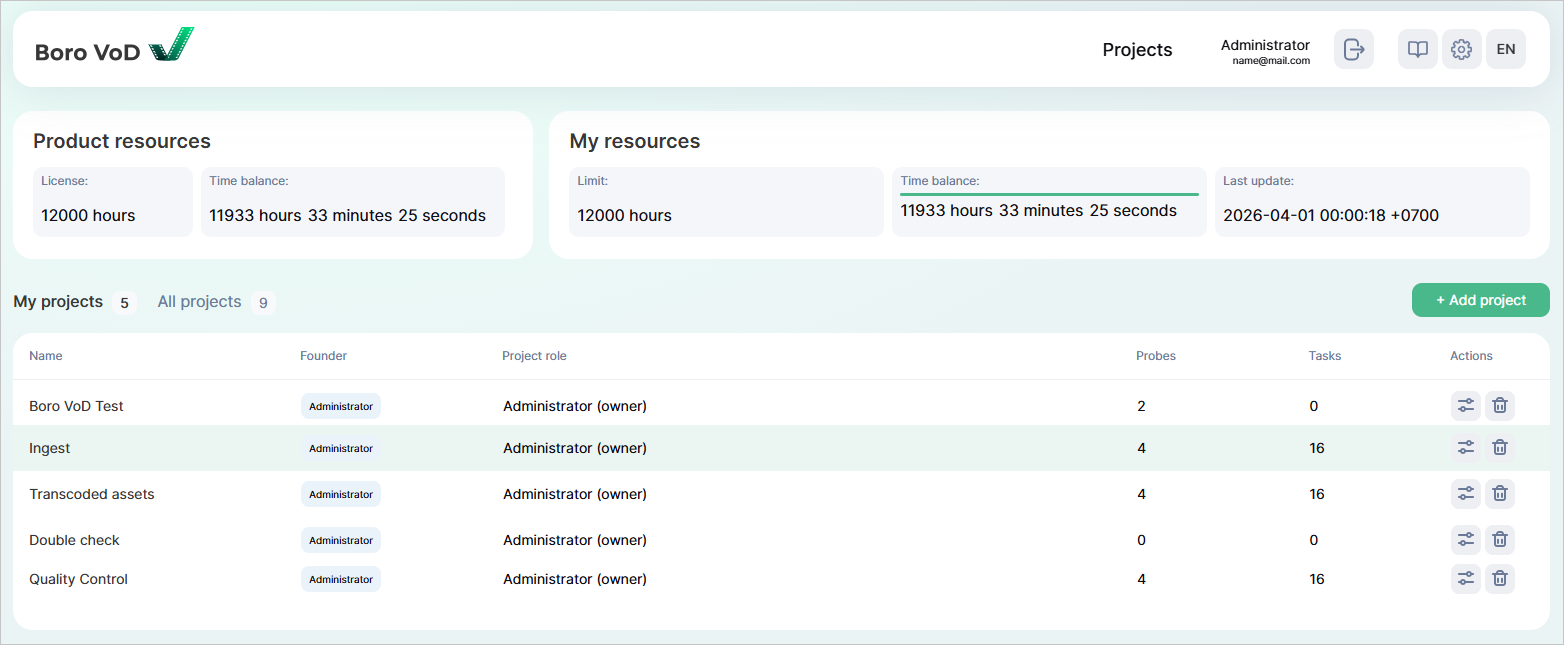
My Projects is a list of projects owned by the current user. This list also includes projects, the ownership of which has been transferred to the current user from other accounts. Meaning that the system supports changing project ownership.
All Projects is a list of all projects which the user has access to. This includes both the user’s own projects and projects of other users who have shared their projects.
In the top right corner is the  button. Clicking this opens the Create new project window.
The user must enter the title of the project, then confirm project creation.
button. Clicking this opens the Create new project window.
The user must enter the title of the project, then confirm project creation.
Project tables contain the following information:
Name ①;
Founder ②;
Project role ③;
Probes ④;
Tasks ⑤;
Actions ⑥:
 — click to open the settings page of a specific project,
 — click to delete the project and confirm the action.
Note
When you delete your own project, the project will be permanently deleted from the system.When you delete a project that has been shared, the project will no longer be available to the current user and will disappear from the All Projects list.
Clicking on a specific project row from the list takes you to that project’s page. By default, this takes you to the Dashboard page—unless this has been changed in Project settings ➝ Default project view.
3.2.1. Hierarchy of Entities
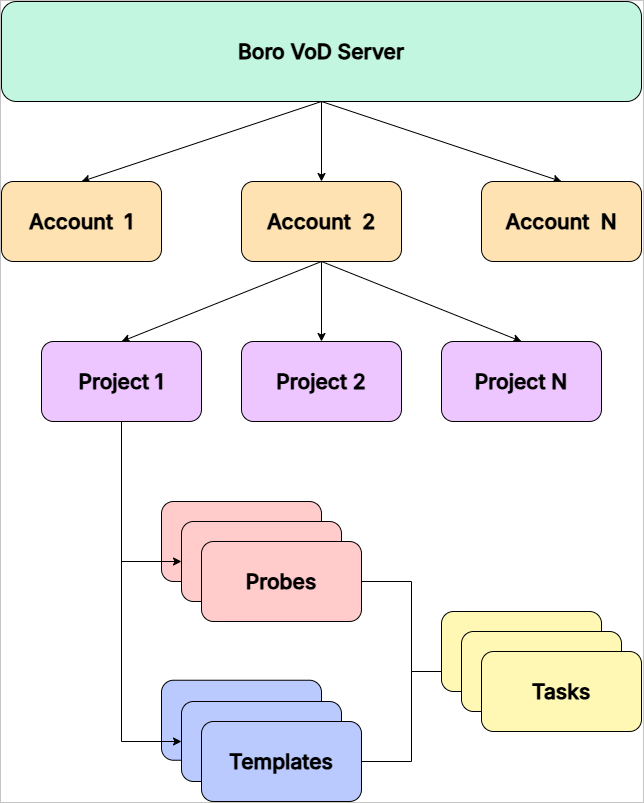
Boro VoD Server is a platform that lets you create accounts and projects to perform media file validation tasks.
Account is a registered user account in the Boro VoD system which contains settings, and a list of available projects, probes and templates.
Project is a logical entity within an account that unites a group of probes, test templates, and to-be-performed tasks. User can create an unlimited number of projects within a single account. In most cases, one project is enough. However, for ease of use, multiple projects can be created to differentiate various types of tasks or quality control locations. Each project is unique and can be configured independently from other projects. Users can grand other users access to their projects.
Probes are software components of the system that perform media file validation tasks against a test template. Each probe is linked to a specific project and operates according to its settings and templates. To scale the solution, user can launch an unlimited number of probes within a project.
Template is a JSON structure includes a list of tests. A test is a rule which the probe validates a media file in reliance to. Each test includes severity level, compliance conditions or thresholds and responsible for analyzing a specific parameter or error.
Task is a process of analyzing a media file using a probe based on a predefined test template. The test template includes a list of tests and compliance conditions. A report is generated based on the results of the validation task.
3.2.2. Licensing System
Elecard technical support team issues license certificates upon request after Boro VoD server’s installation. The procedure is described in further detail in the Installing certificates section.
There are 2 types of licensing certificates:
Temporary – limited-time, intended for activation of the product in demo mode;
Permanent – unlimited-term certificates meant to activate the product for full commercial use.
In both cases, certificates are limited to a specified licensed hour package. Licensed hours are used to validate media files during the billing period (one calendar month), until their total capacity runs out.
How Licensed Hours Are Used
Licensed hours are deducted each time a media file is successfully validated in the system. According to the following rules, hours are deduced from the current license balance proportionally to the duration of analyzed media file:
Standard video file (one video track and one or more audio track(s)): deduction is based on the video track’s duration. Audio tracks are not included in the calculation and are not subject to billing;
File with multiple video tracks: deduction is made in accordance with the total duration of all video tracks;
Media file containing an audio track only (no video): deduction is based on the duration of the audio track. If a media file contains multiple audio tracks (no video): deduction is made in accordance with the total duration of all audio tracks;
For canceled task (a task can be stopped in the web interface on the Dashboard and Task page pages or using the TaskStop API method. Such task will be placed in the Incomplete tasks block on the Dashboard page with its status set as
Canceled): deduction is made in accordance with the duration of the actually checked fragment of the media file.
Accounting and Updating the Balance
The purchased package of licensed hours is what makes up the balance;
The balance is set to the full amount of the purchased package at the start of each billing period (month or a different paid period);
If some of the licensed hours are not used during the billing period, the remaining amount is not carried over to the next period and is terminated;
If the balance fully runs out before the end of the billing period, access to media file validation will be temporarily suspended until the start of the next billing period or until an extra package of hours is purchased.
3.2.3. Project Resources
On the Projects page, in Product resources and My resources blocks, the user can get a real-time track of:
the package of purchased licensed hours;
the hours used as well as the currently remaining balance;
the date of the last balance recharge.
Product Resources displays the statistics for the Boro VoD server license as a whole. Statistics can be accessed by the Boro VoD server administrator. Multiple accounts can be created on a single Boro VoD server. The Boro VoD server administrator can manage the purchased licensed hours by distributing them among signed-up accounts.
My Resources displays the statistics on allocated licensed hours related to a specific account.